Workbench
The workbench is a Dymola-style modeling and simulation environment that runs in the browser. The compiler and solvers are the same Rust code as the command line, compiled to WebAssembly and run in a Web Worker, so the page stays responsive while a model translates or simulates, and models never leave your machine.
Layout
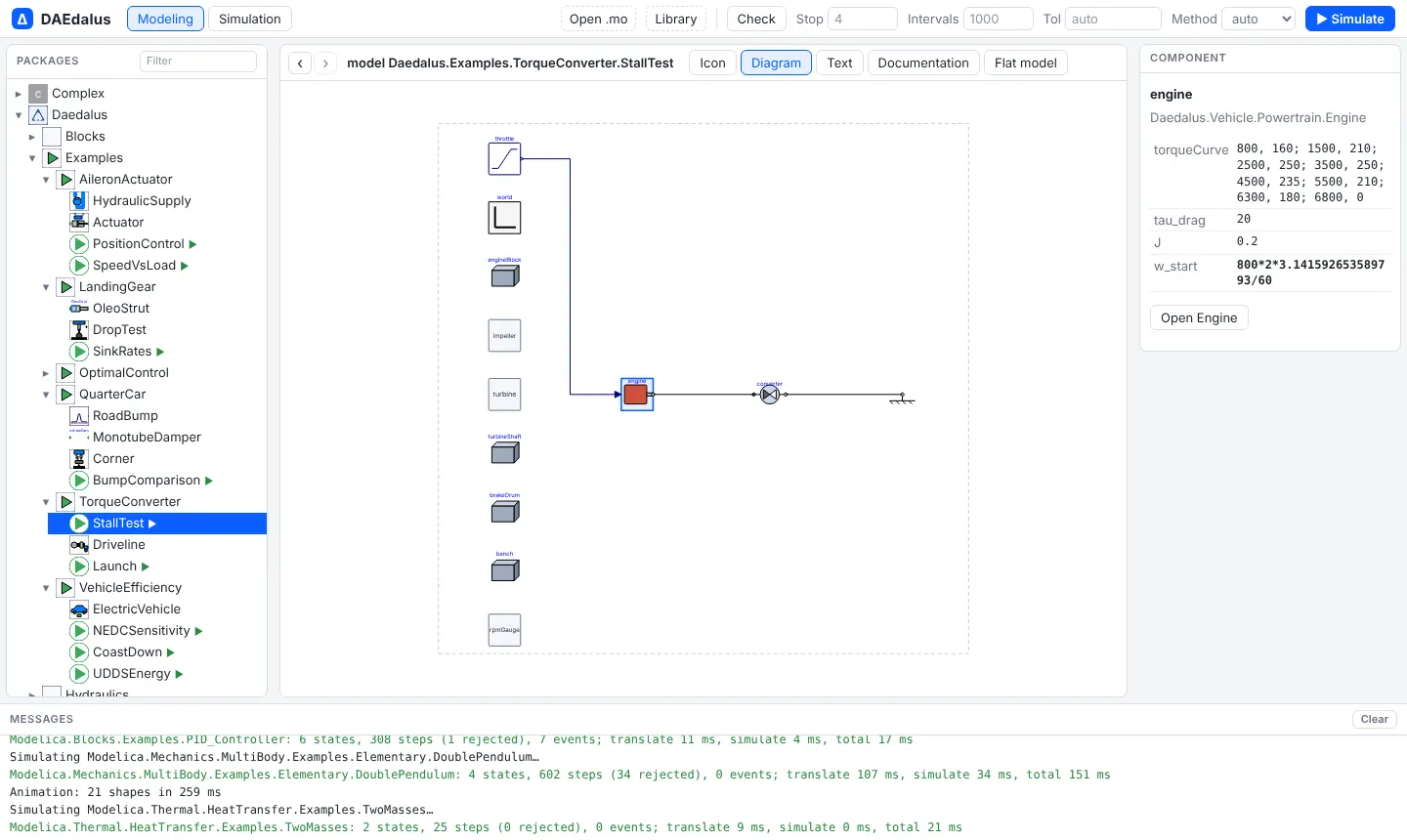
- Toolbar. Modeling and Simulation switch modes. Open .mo and Library
load your own files or folders. Check translates the model and reports its
statistics. Stop, Intervals, Tol and Method override the model's
experimentannotation for the next run, and ▶ Simulate (Ctrl+Enter) runs it. - Packages (left). Every loaded library:
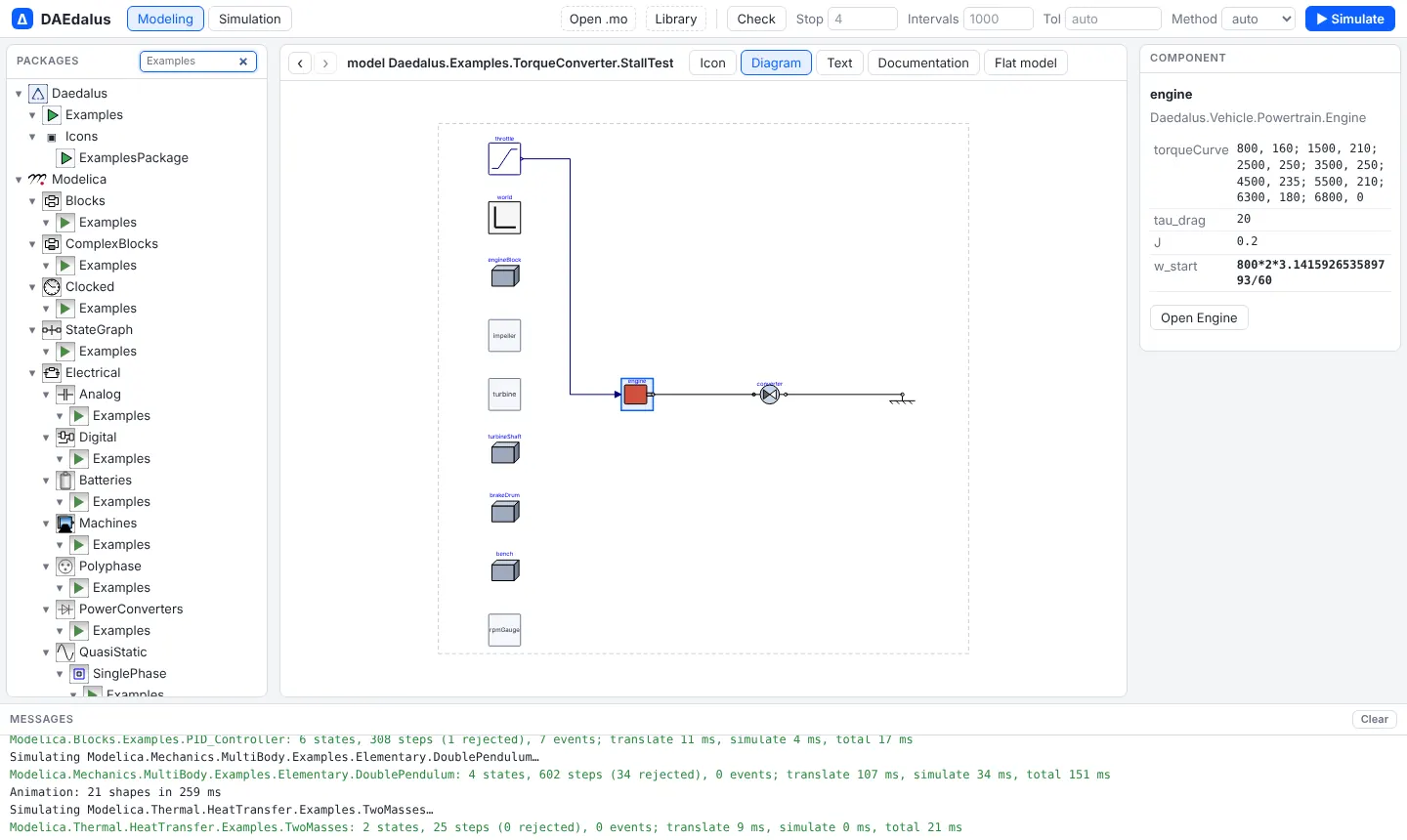
Daedalus, the MSL (Modelica,ModelicaServices,Complex) and whatever you opened. Models with a ▶ can be simulated. The filter box narrows the tree to matching classes. - Class views (centre). The open class in one of five views, with Back and Forward arrows next to its name.
- Component (right). Click a component in the diagram to see its class, description and parameter values; Open jumps to that class.
- Messages (bottom). Translation statistics, timings, warnings and errors.
Class views
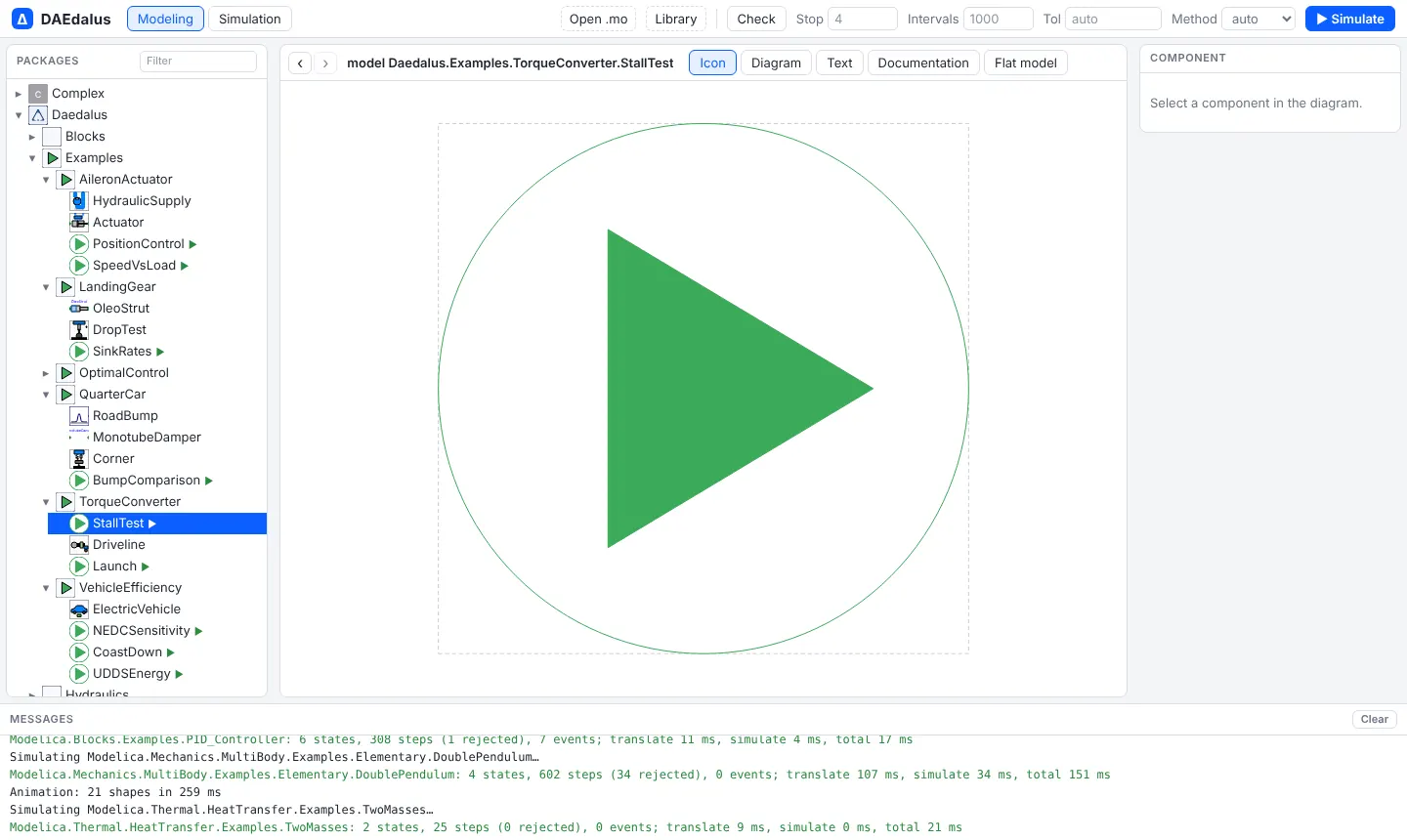
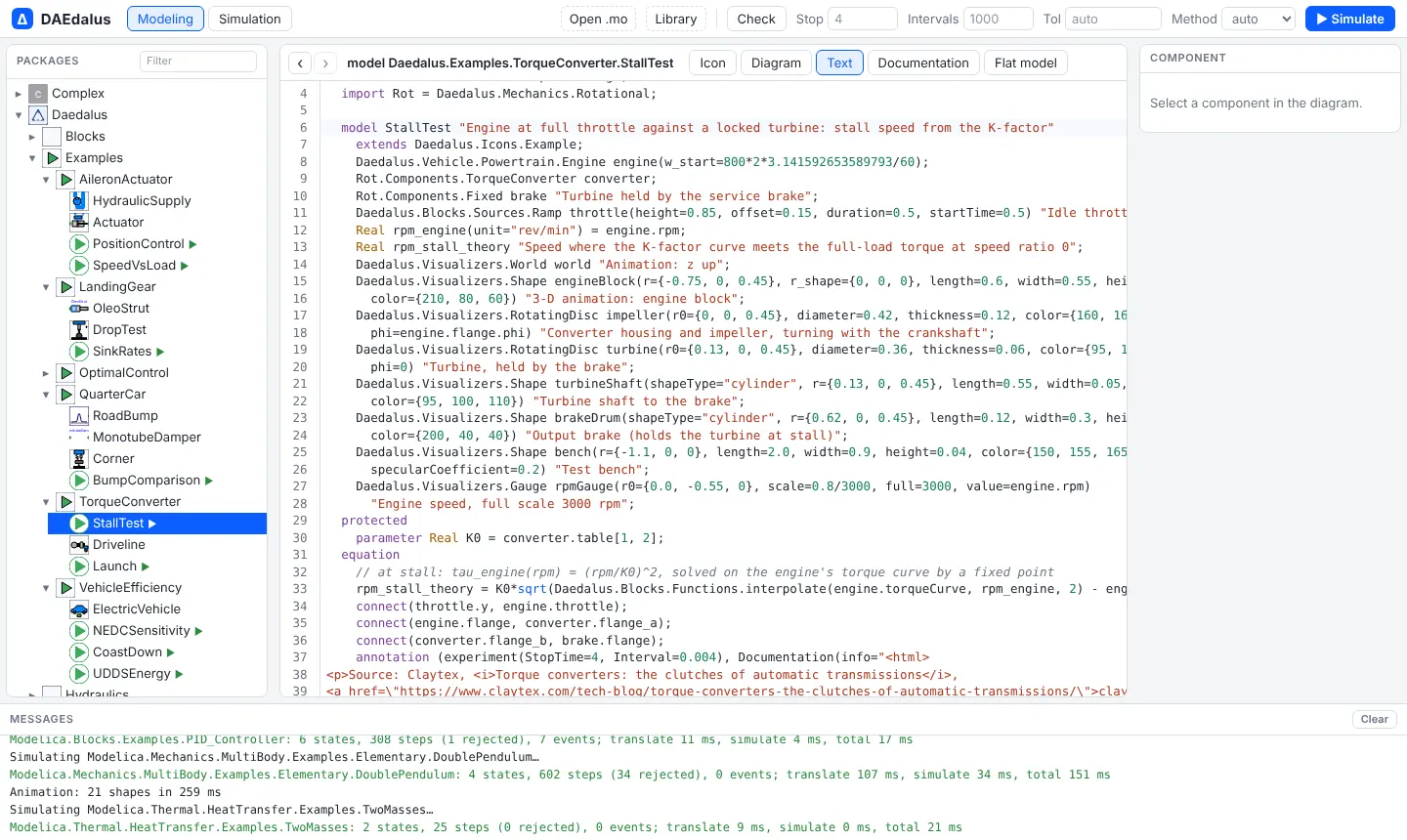
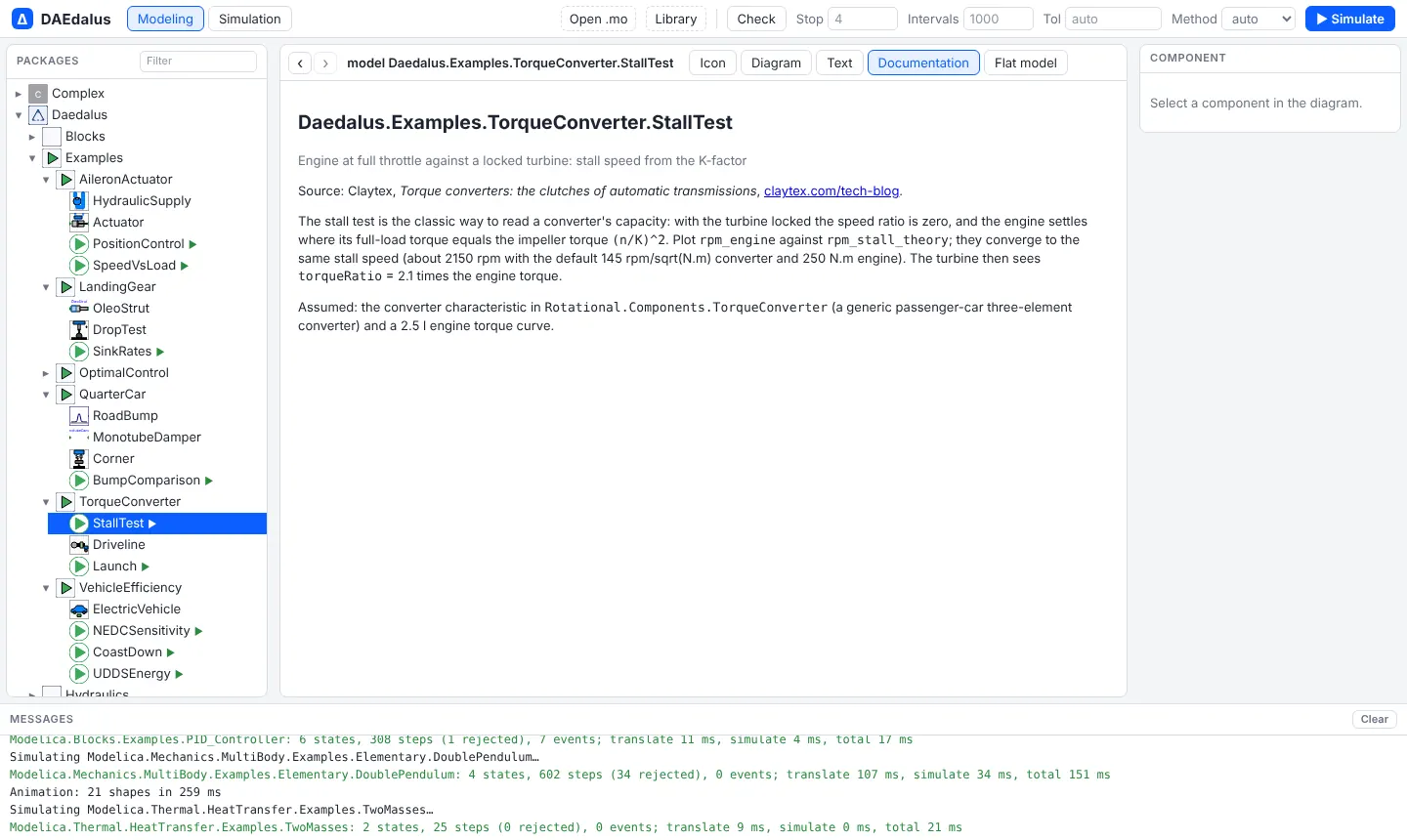
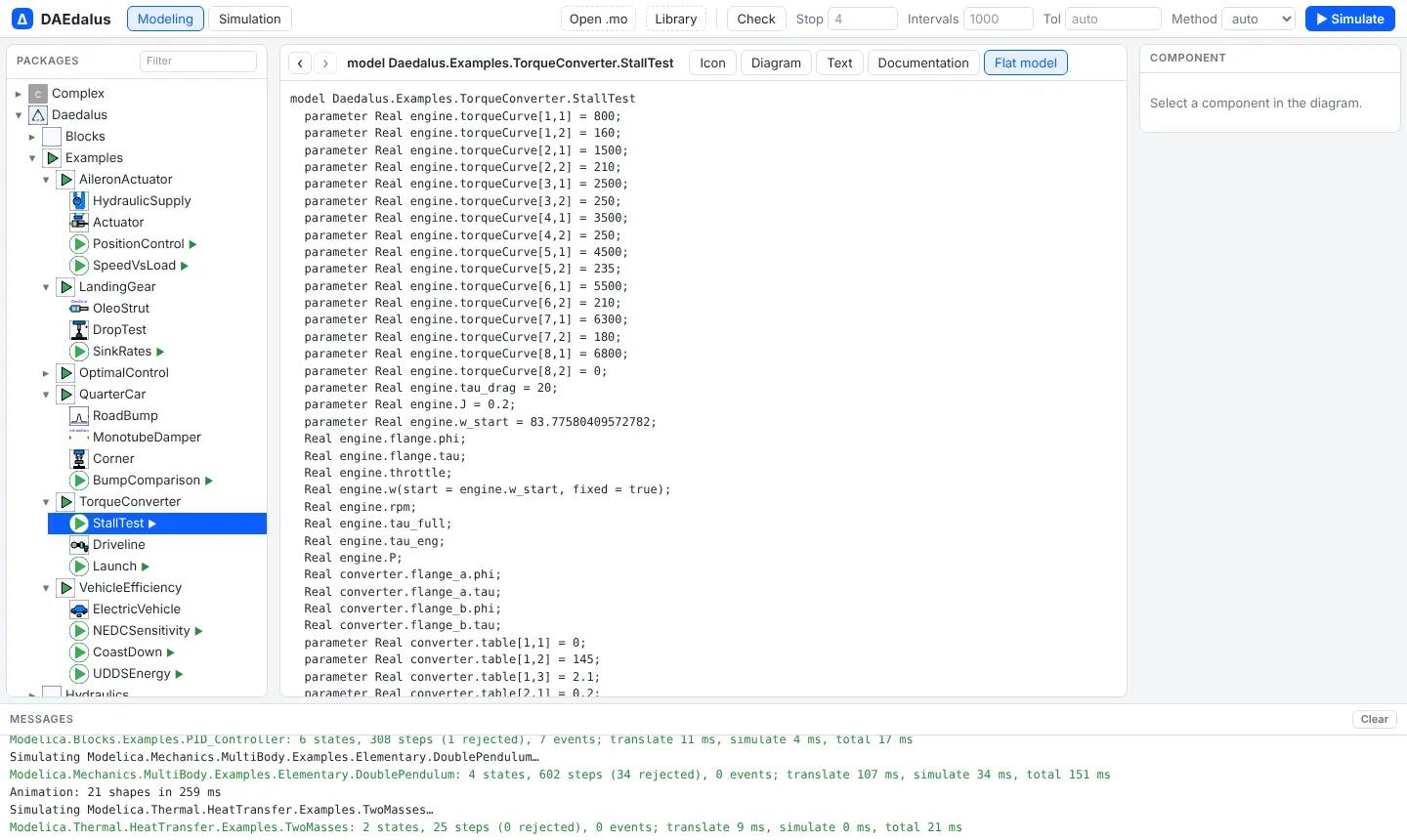
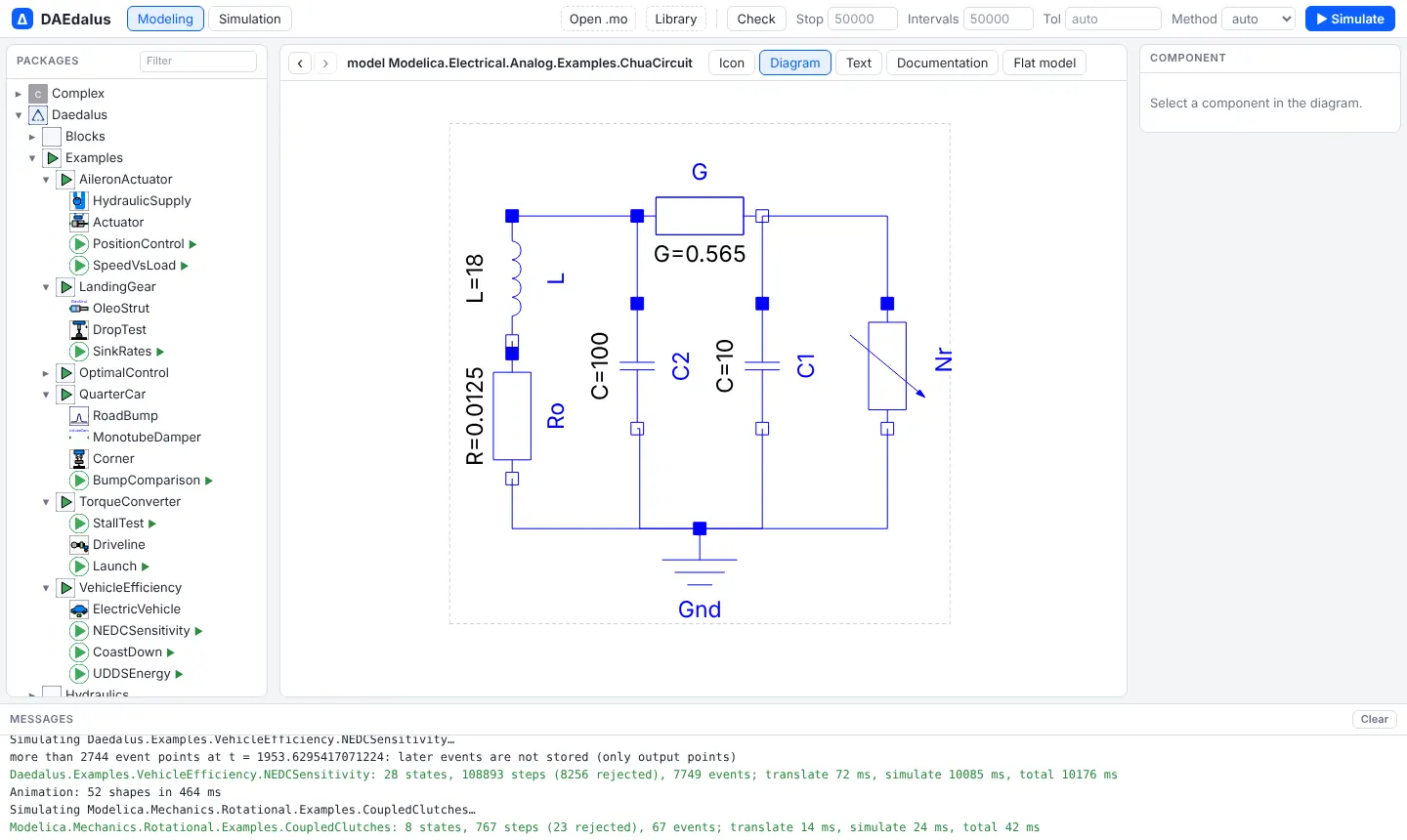
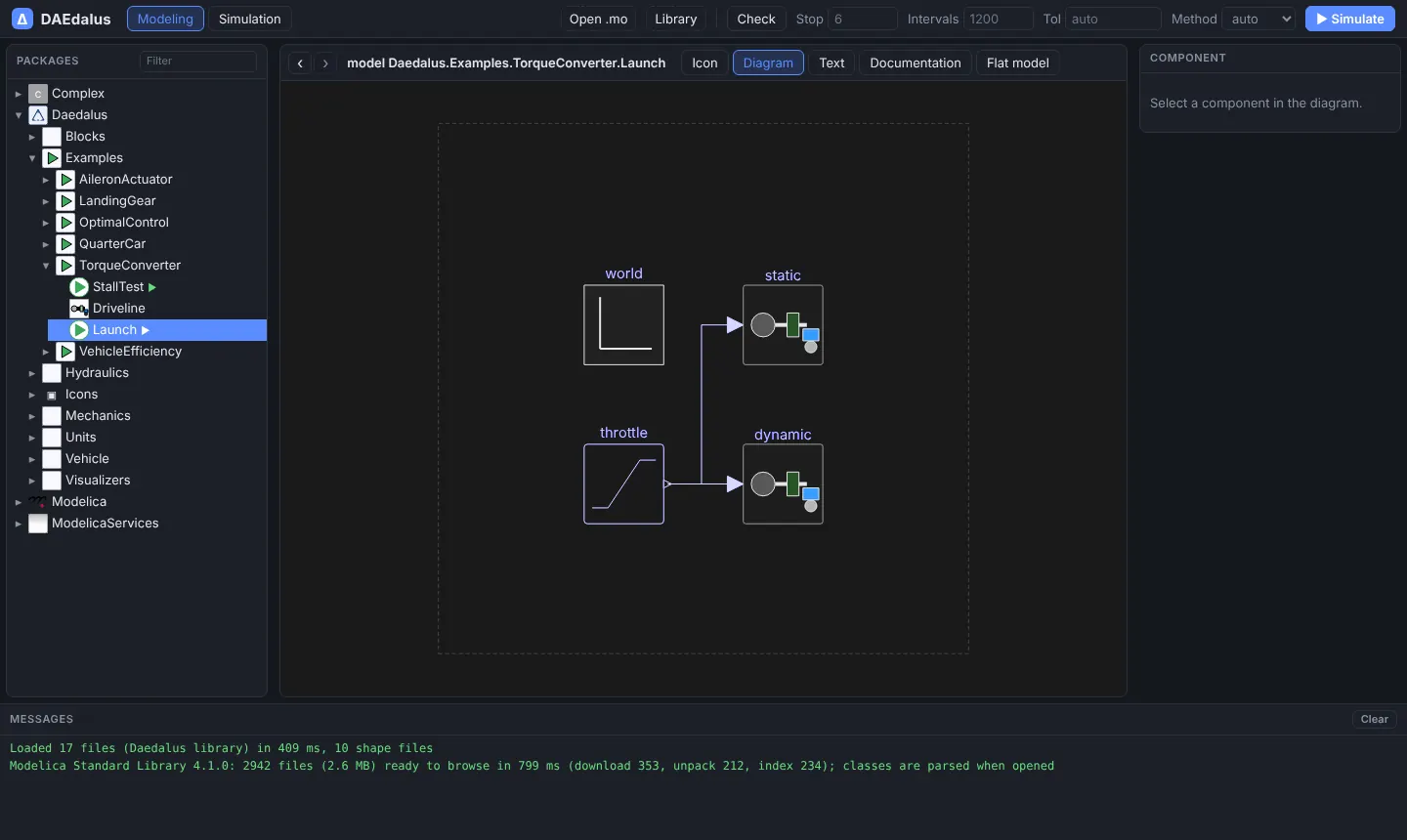
The Diagram view draws components, connections and graphics from their annotations, with zoom and pan (wheel and drag). It works for the bundled library and for the MSL:
Filtering the package browser
Graphical editing
Classes in your own documents can be edited in the Diagram view. The bundled Daedalus
library and the MSL are read-only: Duplicate to my models copies the open class into
MyModels.mo, with every class name it uses written in full, and opens the copy.
New model adds an empty model there. MyModels.mo is kept in the browser, and
Save .mo downloads it.
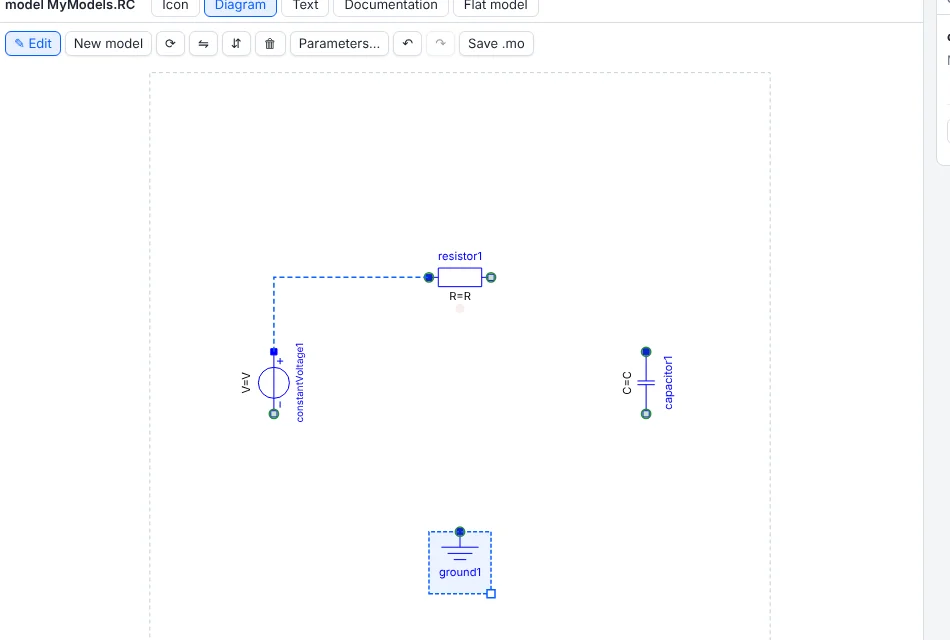
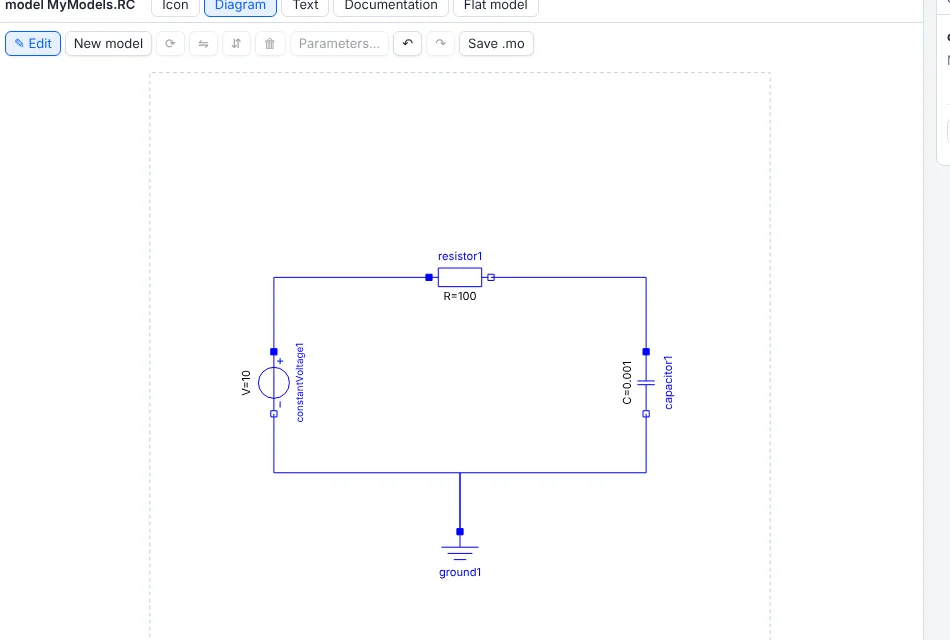
With ✎ Edit on:
- drag a class from the package browser onto the diagram to add a component;
- click or rubber-band to select, Shift to add, drag to move, arrow keys to nudge;
- R rotates by 90°, H and V flip, Del deletes components with their connections, and the corner handle resizes;
- drag from one connector to another to connect. Compatible connectors (same class,
same members, or one family such as
RealOutput/RealInputorPositivePin/NegativePin) light up, and the line is routed orthogonally; - double-click a component for its parameters: name, value, unit, description and the class default. Values are written as modifiers, and emptying a field removes one;
- Ctrl+Z and Ctrl+Y undo and redo.
Each gesture edits only the tokens it has to, so comments, layout and other annotations in the source stay as written, and the Text view, Check and Simulate use the edited text at once.
Simulation and the variable browser
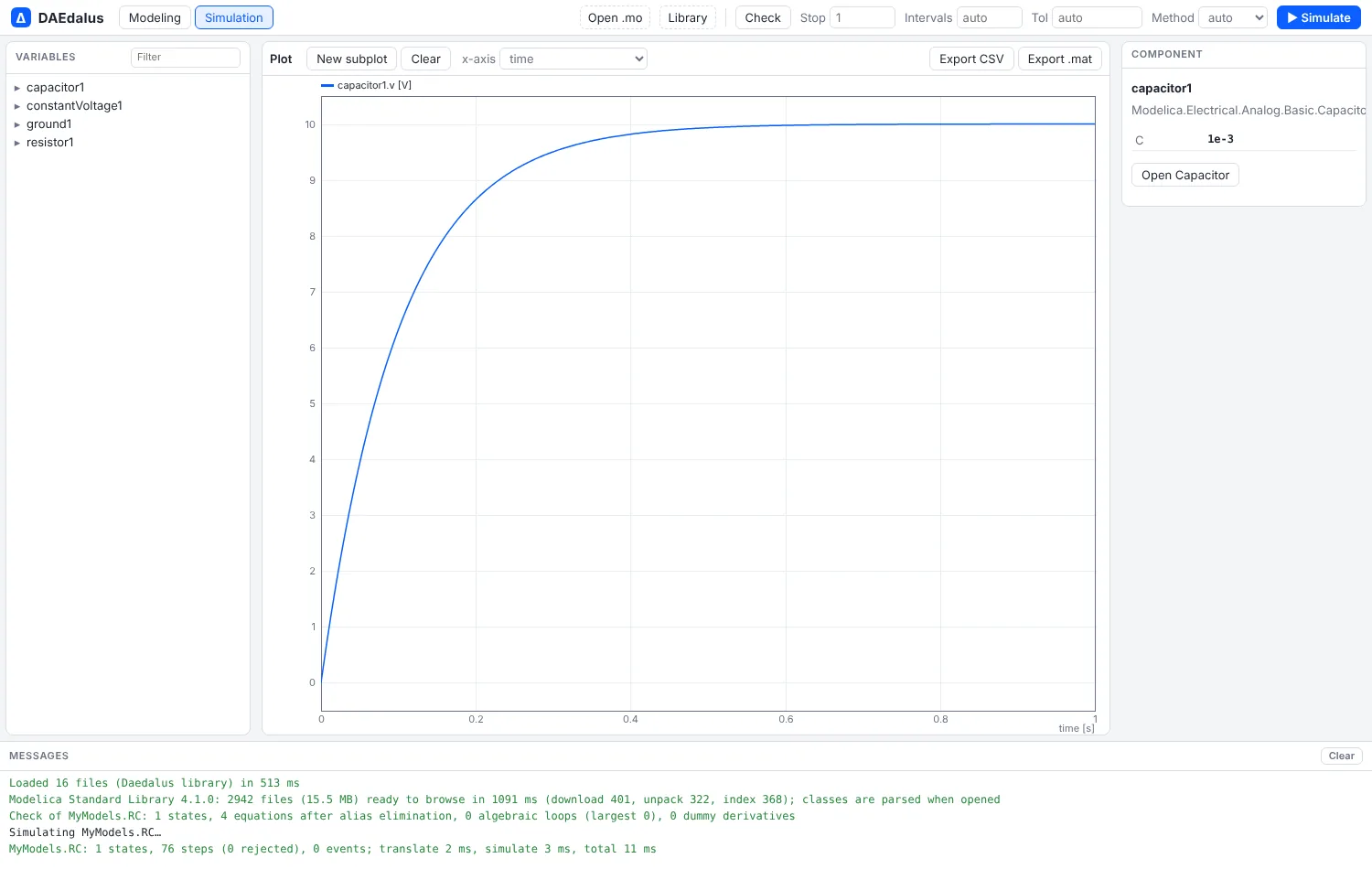
▶ Simulate compiles the model in the worker and switches to Simulation mode. The left pane becomes the variable browser: the result's component tree, with each variable's value at the end of the run and its display unit. Typing in the filter keeps the matching variables. Ticking a variable plots it.
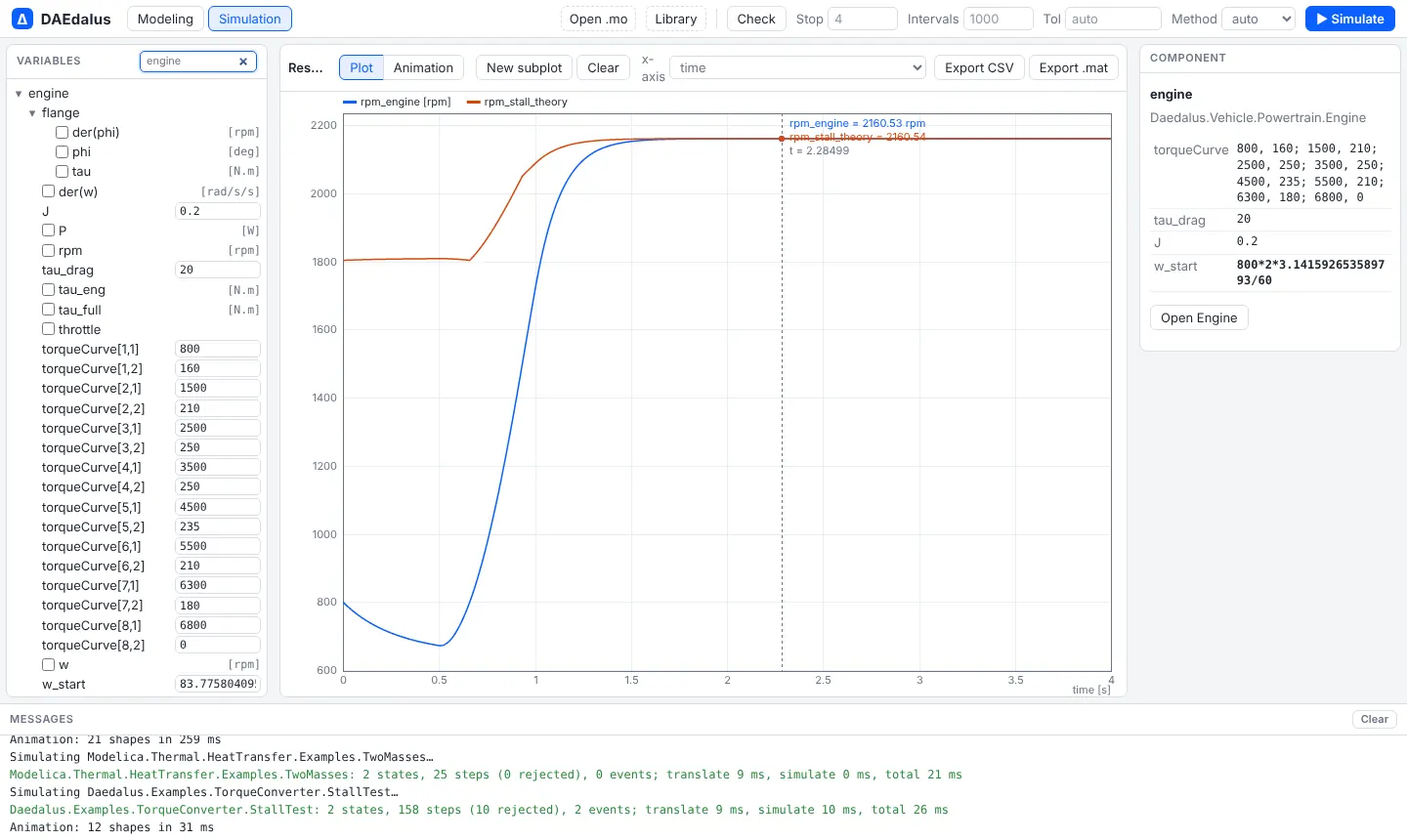
Parameters are editable in the variable browser: change a value and simulate again, and the run uses the new value without touching the source. Overrides belong to the model they were made on and are cleared when you open another class.
Plots
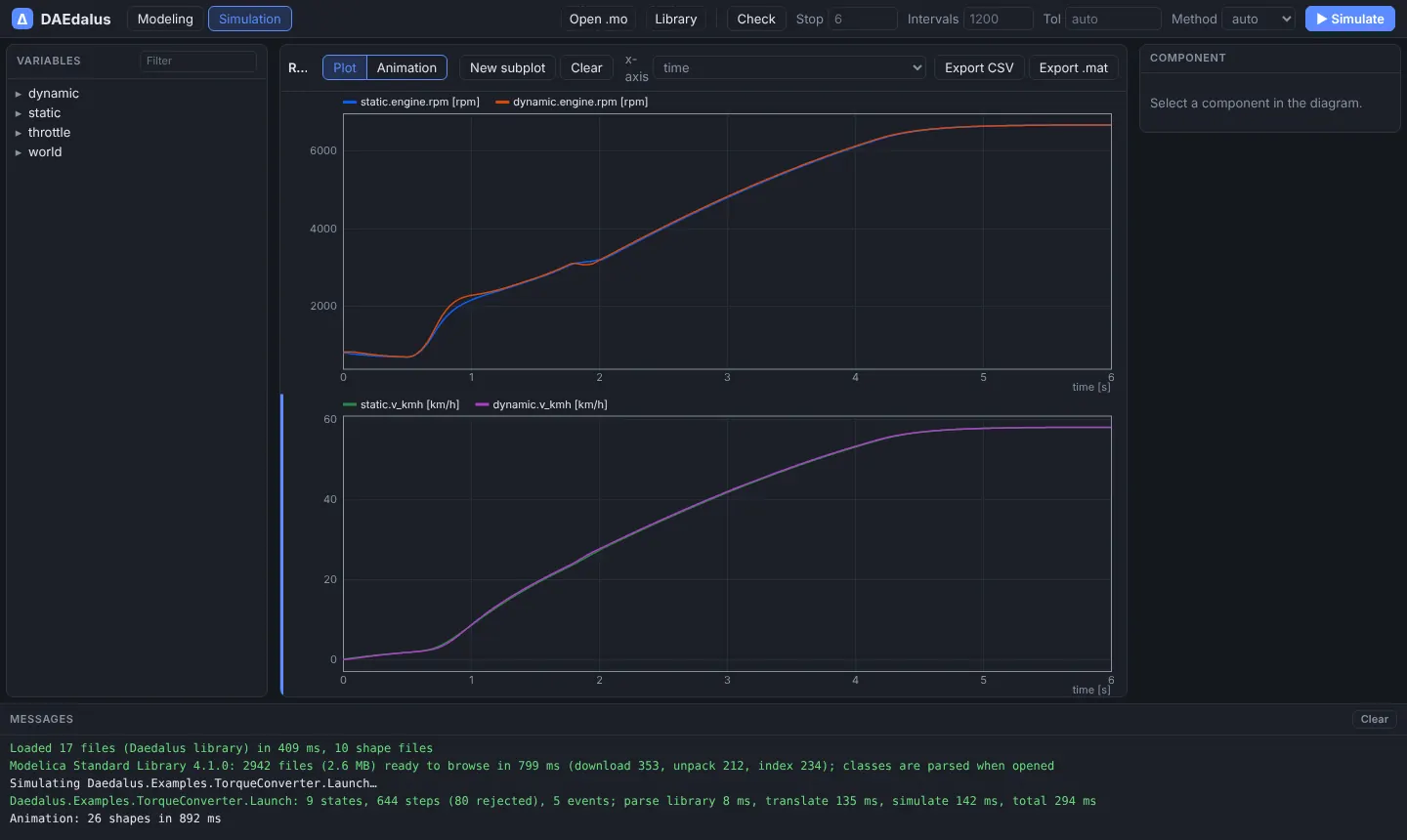
The plot window draws thousands of points per series smoothly and has:
- Display units, as in Dymola:
rad/sshows asrpm,radasdeg,Paasbar,KasdegC,m3/sasl/minandJaskJ; - subplots (New subplot) that share the time axis and zoom together;
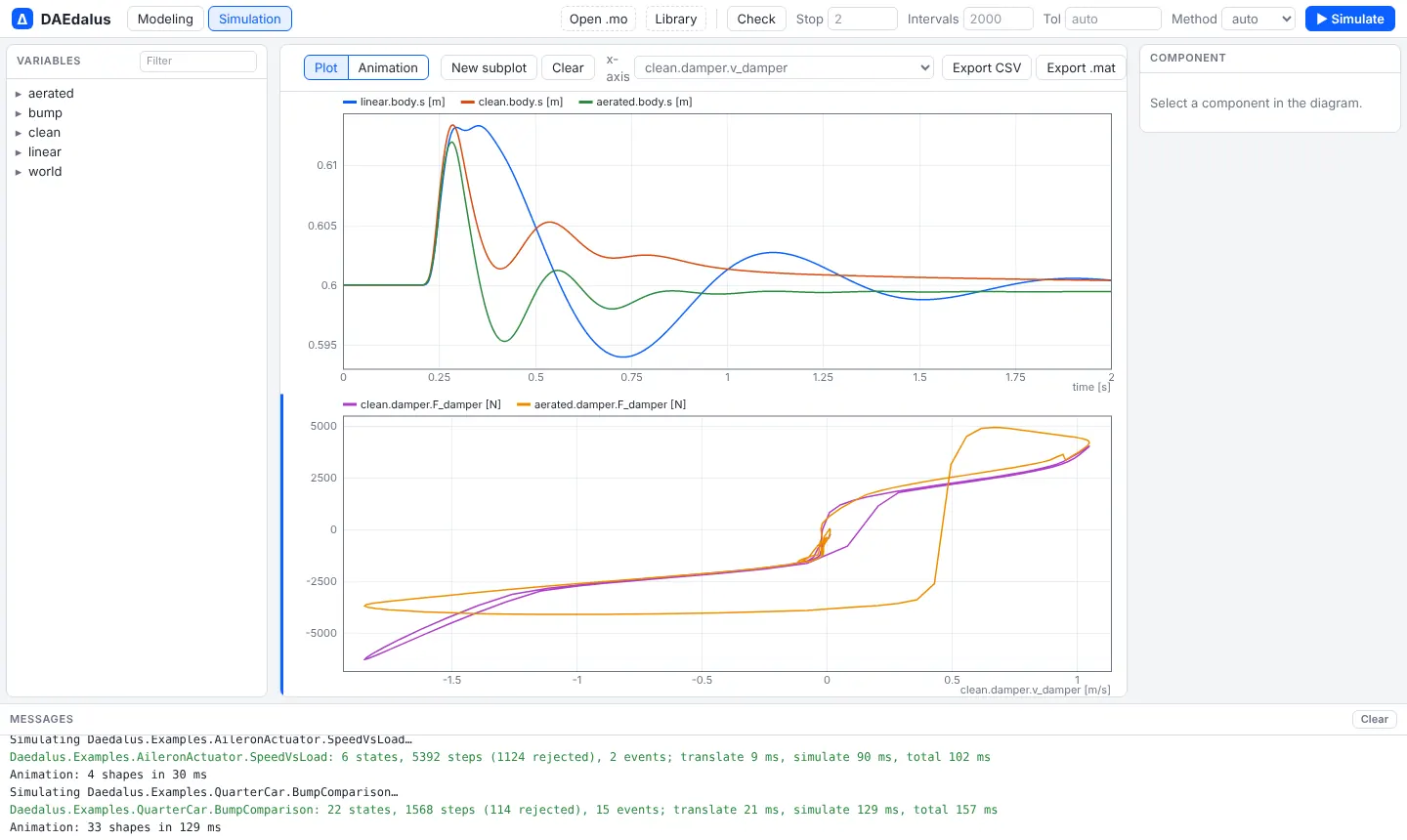
- parametric plots: choose a variable as the x-axis of a subplot to plot one variable against another, such as a damper's force against its velocity;
- a crosshair readout of every series under the mouse, and drag-to-zoom;
- Export CSV and Export .mat of the plotted variables.
Structure, analysis and experiments
The Structure tab next to Flat model shows the equation structure, state selection and Jacobian (Structure and state selection). Analysis in the toolbar runs sensitivities, Monte Carlo, calibration and optimization (Sensitivity, uncertainty and calibration). Every run is kept in the Runs pane for overlays, differences, sweeps and share links (Experiments), and Profile adds a Performance tab (Performance analyzer). ✦ Assistant opens a chat with Claude that can use all of these (AI assistant).
Animation
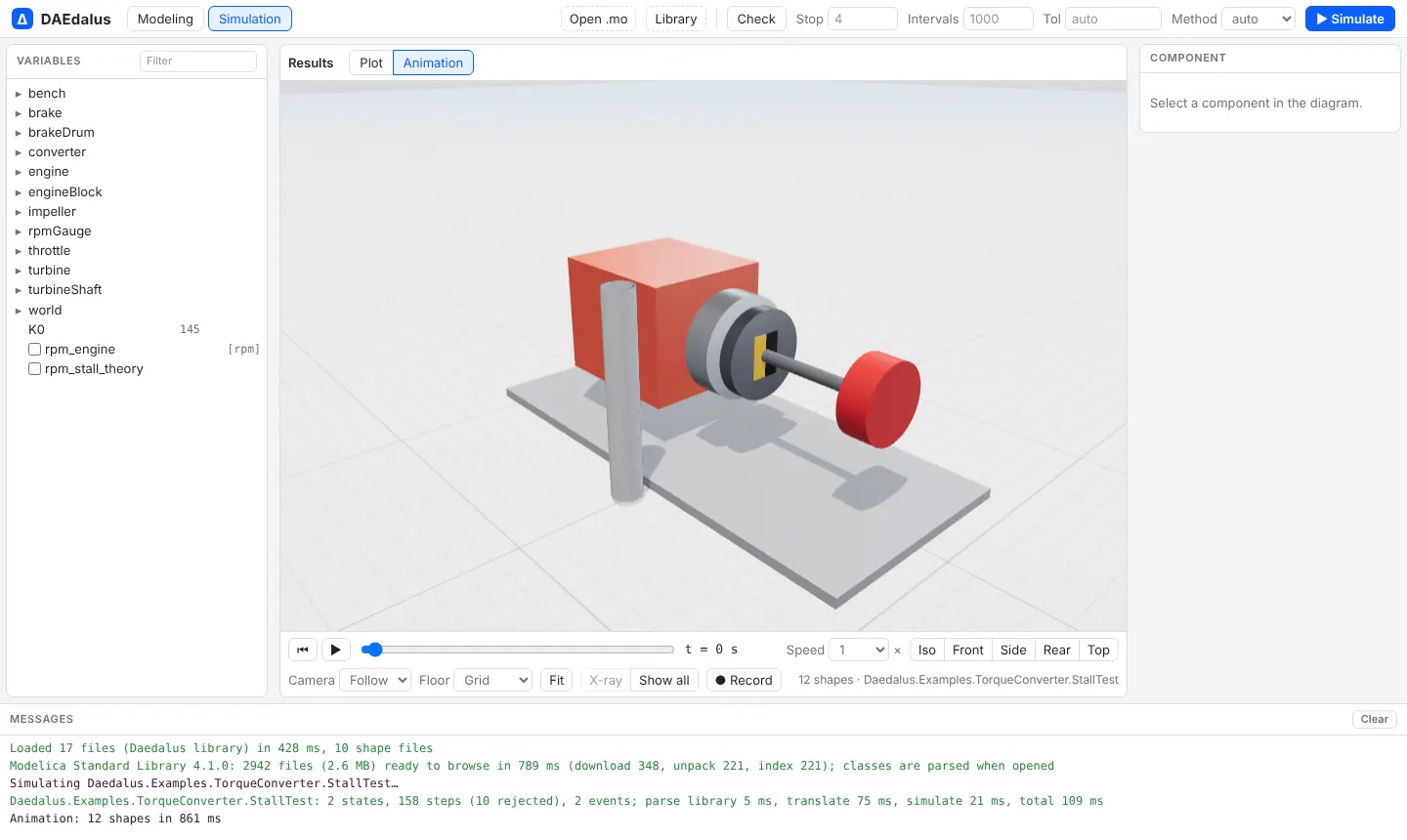
Models that contain MultiBody shapes, or the visualizers of the bundled examples, open in the Animation view after a simulation. See 3-D animation.
Dark mode
The workbench follows the system's light or dark theme. Diagrams keep their hues with inverted lightness, so MSL icons stay readable.
Navigation and links
Each class you open is a browser history entry with its own address, /# followed by the
class name. Back and Forward, Alt+← and Alt+→, the mouse side buttons and the arrows next
to the class name walk through them. A link to /#Some.Class opens that class, including
MSL classes, which open once the library has loaded. Every example on these pages links to
its model this way.
How loading works
The page loads the bundled Daedalus library, then downloads the MSL bundle (about
2.6 MB, 14.8 MB unpacked) and unpacks it with DecompressionStream. A light token scan
outlines every file so the package browser can list the whole library within seconds; a
class is parsed only when it is opened, checked or simulated, together with the classes
it needs.